Amounts in one list
Tap a currency, enter an amount and confirm the calculation. The results appear in the other rows.
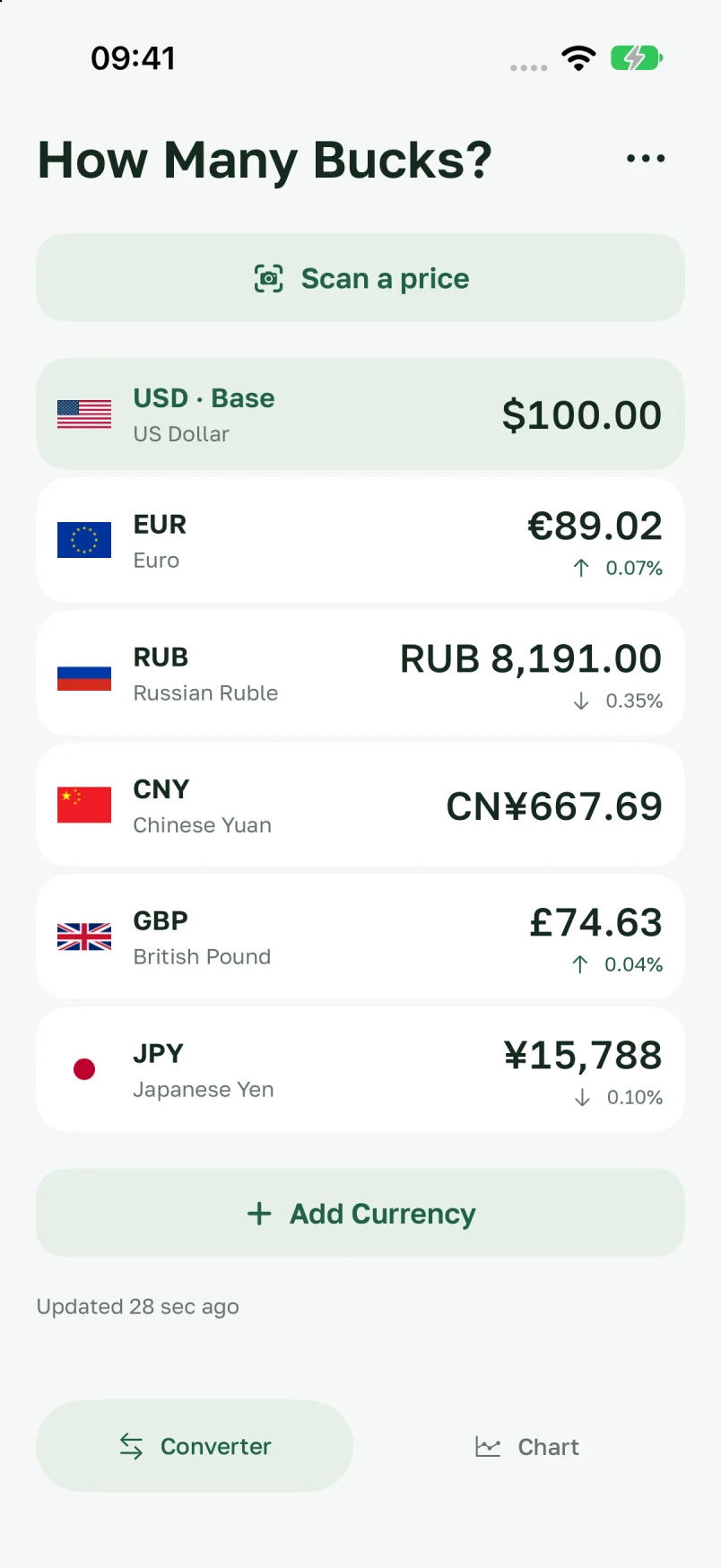
 How Many Bucks?
Currency converter for iPhone and iPad
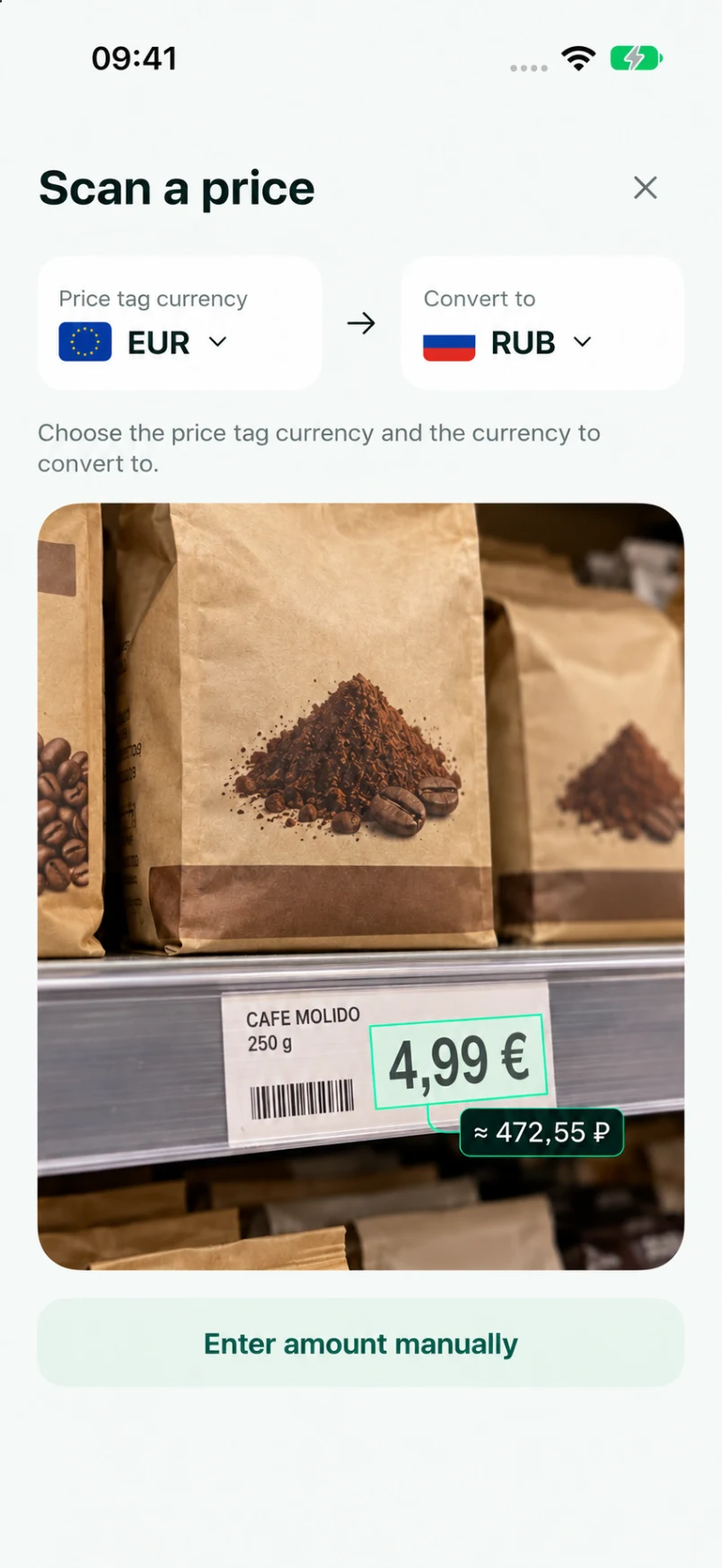
Choose your currencies and point the camera at a price tag. The app reads the amount and shows the conversion beside it.
 Open in TestFlight
Scan with your iPhone
to open TestFlight
iOS and iPadOS 18+ · In English and Russian
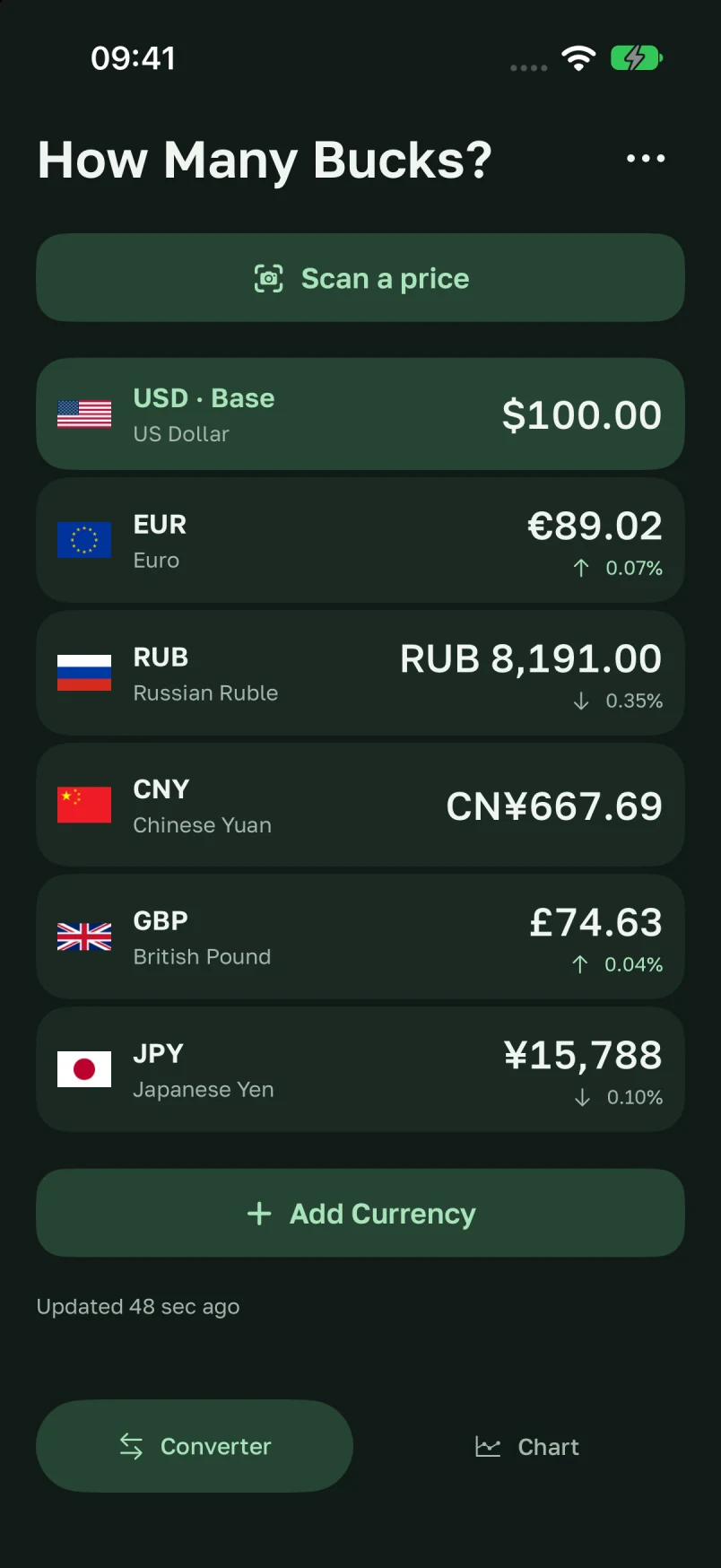

Choose and reorder your currencies

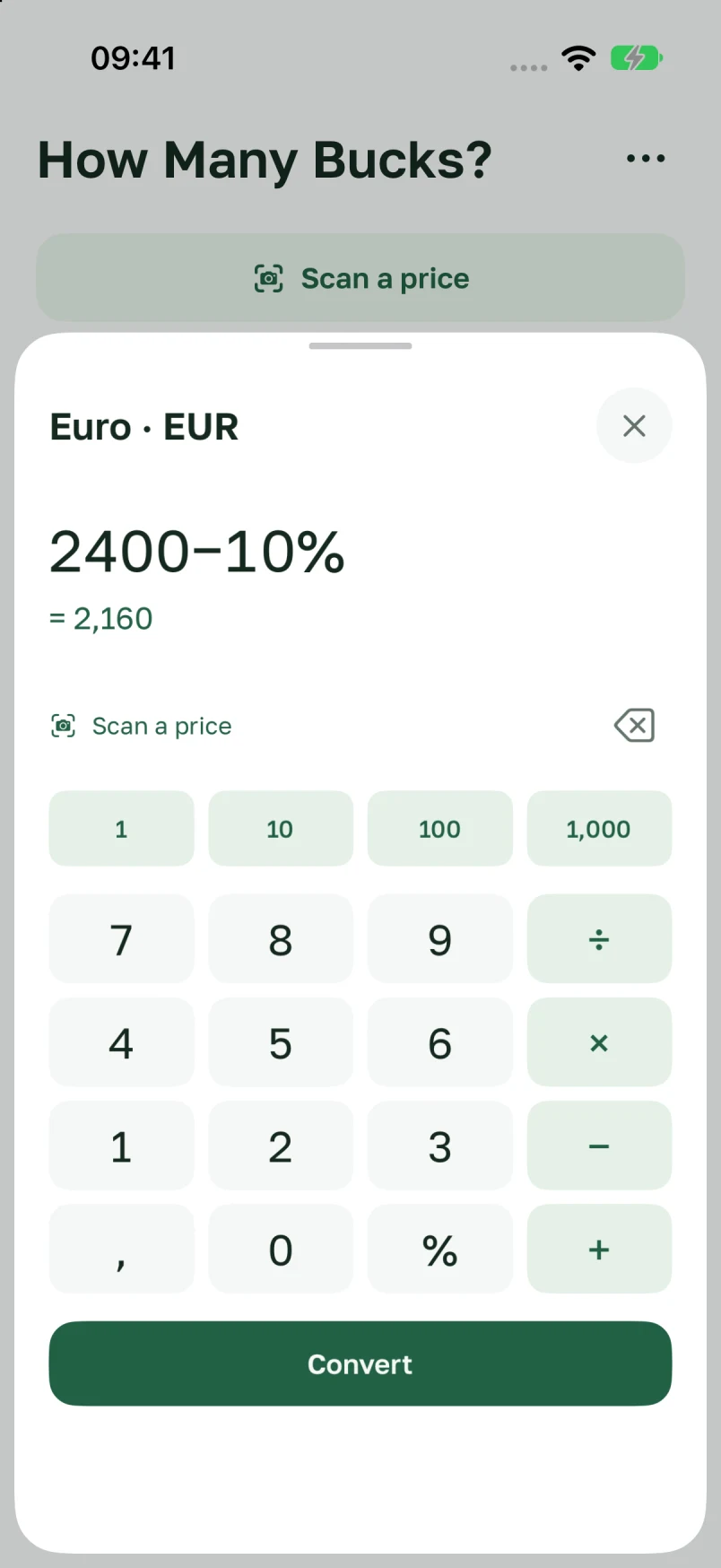
Discounts, tips and bank fees

Uses the last saved exchange rates
Example using an illustrative rate of €1 = ₽94.70.
Tap “Scan a price” in the converter.
For example, euros on the price tag and rubles for the result.
The conversion appears beside the price. Check that the amount was read correctly.
The list shows your selected currencies. Tap any row to enter an amount, or drag rows to change their order.
Tap a currency, enter an amount and confirm the calculation. The results appear in the other rows.
2,400 − 10% = 2,160. Confirm the calculation to use the result in the converter.
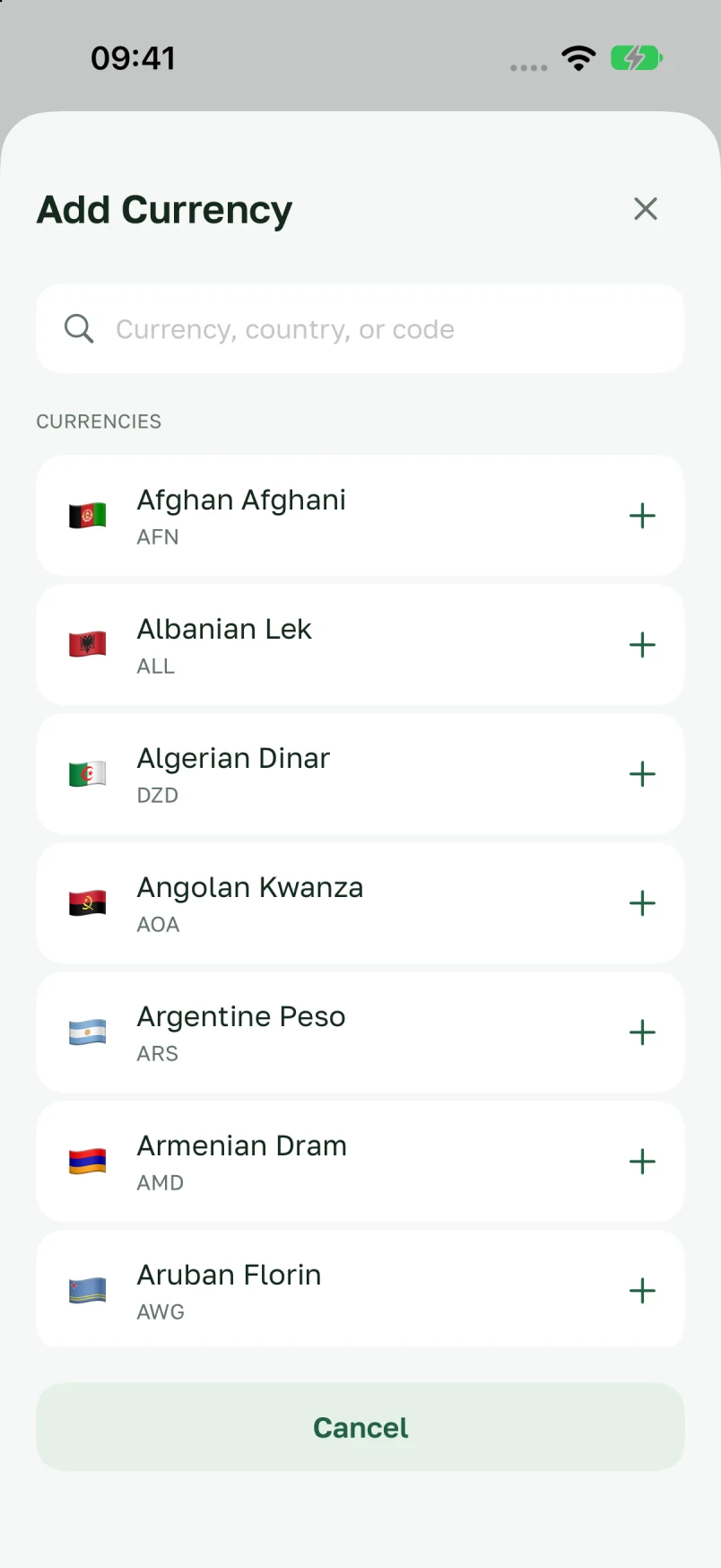
Search by currency name, country or code. Add the currencies you need to your list.
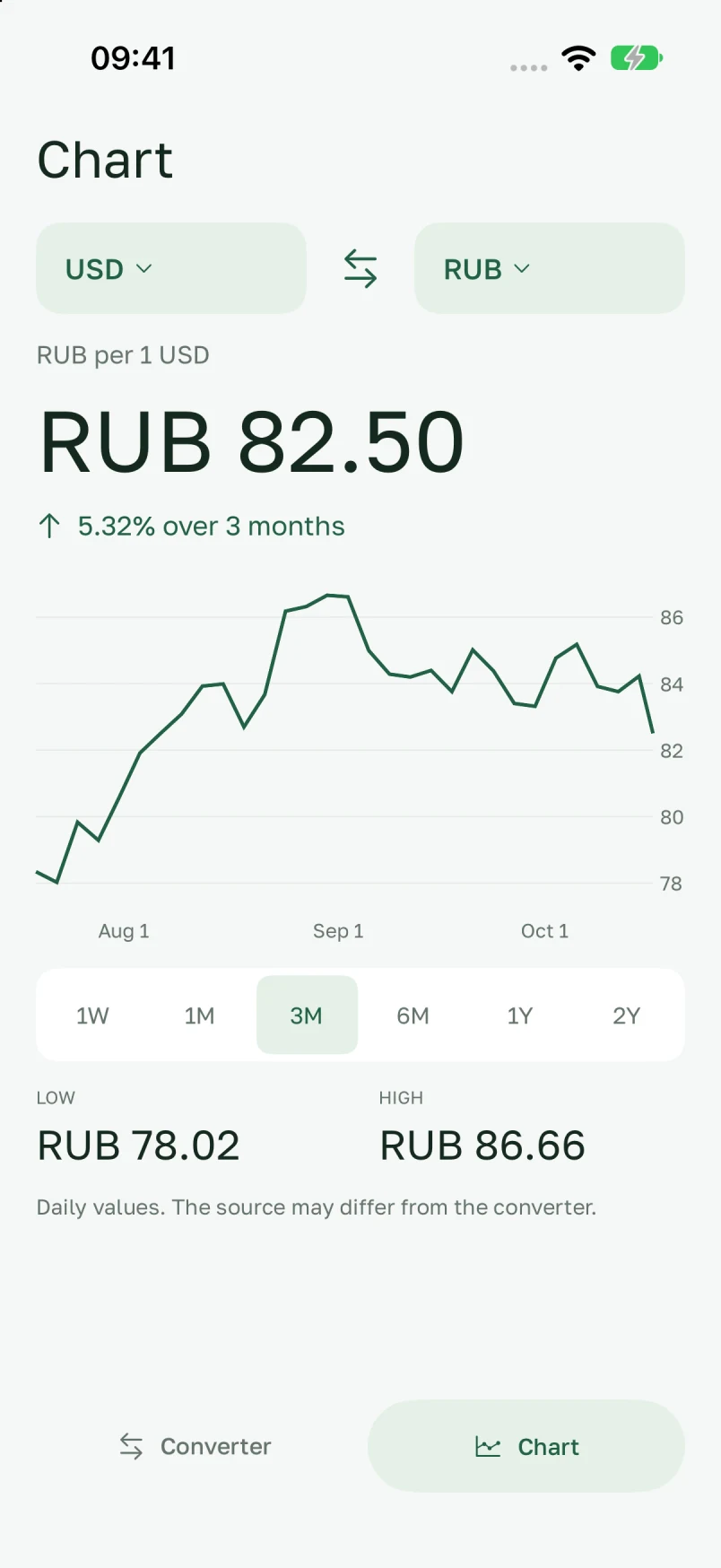
Choose a currency pair and a period from one week to two years to see daily rate changes.
Screenshots from version 1.0 for iPhone. Amounts and exchange rates are examples.
Offline, the app uses the last downloaded rates. The update date appears below the currency list. You need an internet connection to get new rates.

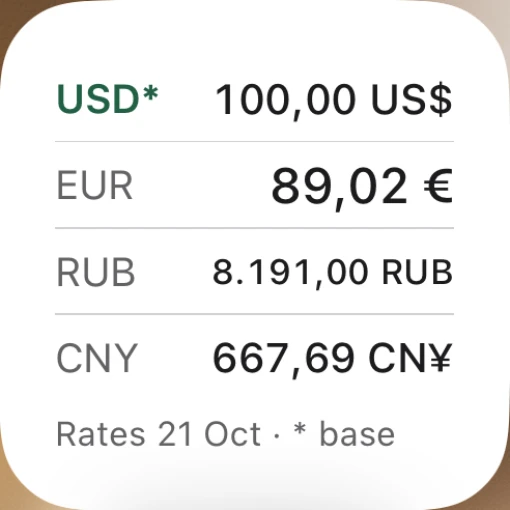
Show amounts from the app on your Home Screen and Lock Screen.

Start a conversion with your voice or add it to a shortcut.

When iCloud is available, your currency list, its order and the bank fee setting sync across devices.
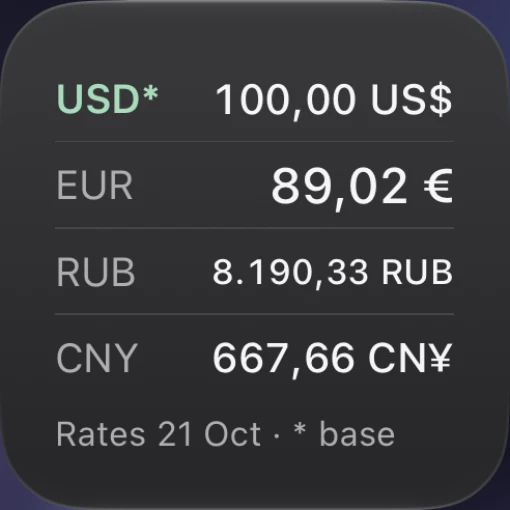
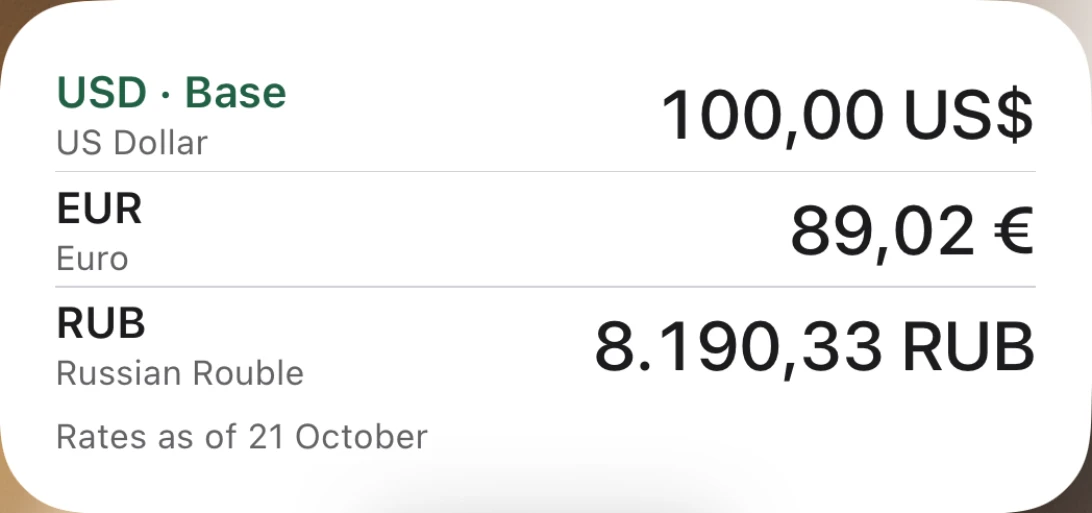
Rate sources, settings and using the app without an account.
Current rates come from Coinbase. Daily rates and history come from fawazahmed0/exchange-api. Your bank’s rate may differ. You cannot buy or sell currencies in the app.
Yes. Go to “More” → “Bank Fee”. Choose a percentage, and the app adds it to amounts in other currencies. This is an estimate; your bank determines the final charge.
Yes. Go to “More” → “Historical Rates”. You need an internet connection to load data for the selected date. Previously saved data may be available offline.
Tap “Scan a price” and choose the price tag currency and the result currency. Point the camera at the price to see the conversion. Check the recognised amount before using it. Scanning is available on supported devices.
No. The amount and exchange rates are stored on your device. Your currency list, its order and the bank fee setting may sync through your iCloud account.
iPhone and iPad with iOS or iPadOS 18 or later. The interface is available in English and Russian. Reading price tags requires a device that supports scanning.
Open the link on your iPhone or iPad.
You’ll need the TestFlight app to install it.
Open in TestFlightScan with your iPhone
to open TestFlight
Tell us what went wrong and include your device model and iOS version. A screenshot will help us understand the problem.
 me@kirodev.eu